A little bit of context.A lot more action.

Run Mac shortcuts automatically.
Choose what Trypa watches. Decide what happens next.

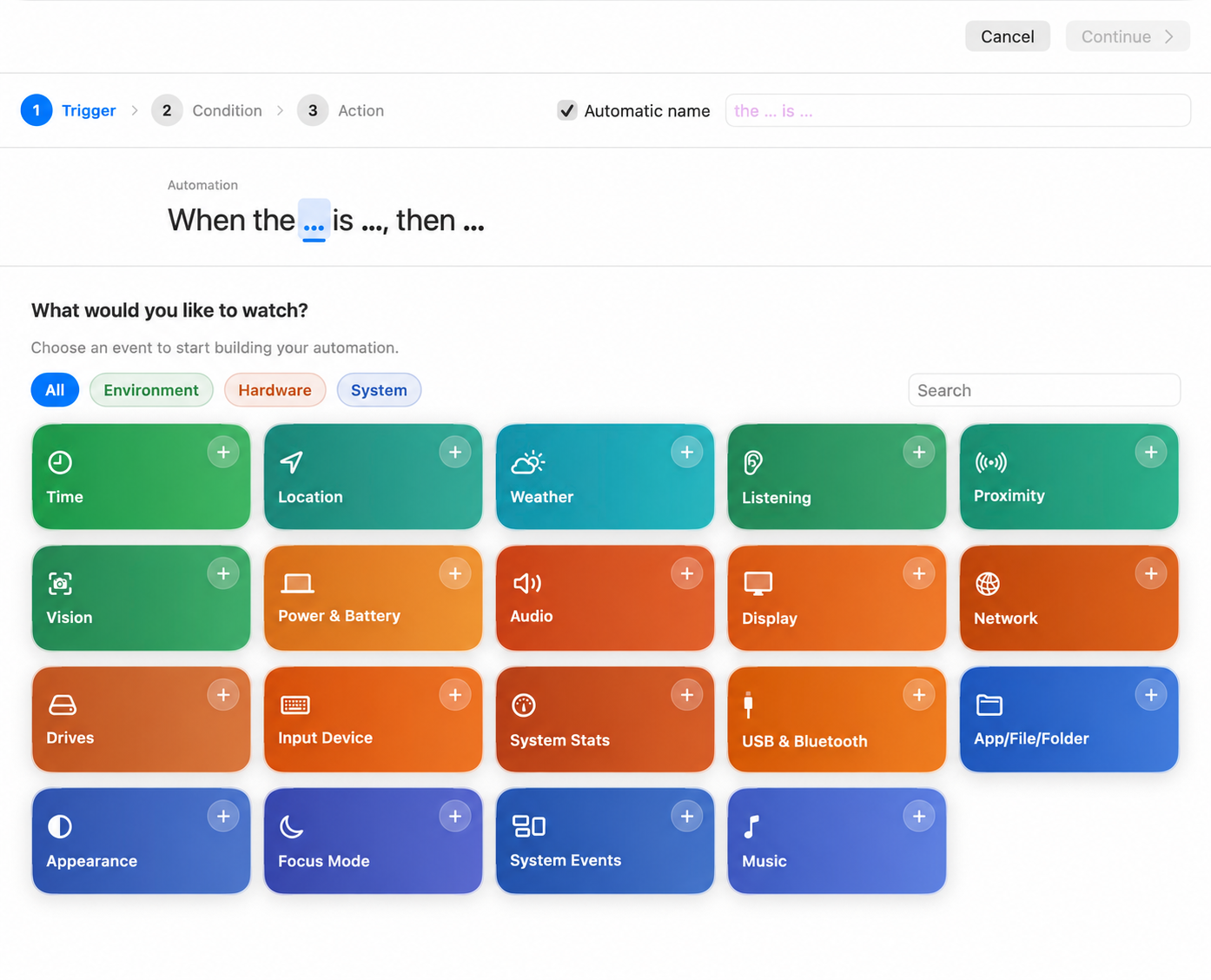
Trypa’s trigger chooser, with options for time, location, weather, sound, displays, networks and more.
Trypa 2 · Click to enlargeTime, location, sound, weather and the everyday changes around you.

Trigger. Condition. Action.

Tell it when.
Let your shortcut do the rest.

Choose a trigger, set its condition, then choose the action. For example: Office Wi-Fi → Connected → Start My Workday.

  1. 1
    TriggerChoose what to watch: a device, a sound, a place, the weather or your Mac.
  2. 2
    ConditionChoose when it should respond: connected or disconnected, above or below, heard or not heard.
  3. 3
    ActionChoose the shortcut to run when the condition is met.

Made for your Mac

Native where it matters.

Trypa uses Apple’s frameworks for sound recognition, local weather, location and desktop widgets. Your automations stay connected to the way your Mac works.

Core MLOn-device machine learning, powered by Apple.
WeatherKitWeather at your current location.
Shortcuts + App IntentsYour actions and workflows.
WidgetKitTriggers and groups on your desktop.

From Trypa users

Reviews.

Trypa app icon

Put your shortcuts to work.

Trypa 2: free with one trigger.
Pro adds unlimited triggers, Groups and Weather.

Download on the Mac App StorePro is a one-time upgrade. No subscription.

Screens show Trypa 2. The Mac App Store lists the version and features currently available in your region.

Trypa support

How can we help?

Set up your first trigger, get an automation running, or find help with Pro.

Start here if nothing happens

Four things to check.

Work through these before changing your automation.

  1. Monitoring is enabled.Keep Trypa running and make sure monitoring is on.
  2. Your trigger is enabled.Check the trigger and, if it belongs to a group, that the group is enabled too.
  3. Permissions are allowed.Check macOS System Settings → Privacy & Security for permissions requested by your chosen trigger.
  4. The shortcut works on its own.Run it in Apple Shortcuts and approve any permissions its actions need.
01

Getting started

A change on your Mac is the trigger. Your shortcut supplies the actions.

Create your first automation

  1. Add a trigger in Trypa. Choose what to watch, such as Time, Network or Power & Battery.
  2. Set the condition. Choose when it should run—for example, when your office Wi-Fi connects.
  3. Select your shortcut. Choose the shortcut you want to run, then save the trigger.
  4. Turn on monitoring and test. Enable the trigger, then cause the condition to change so you can check the result.
Trypa trigger chooser showing Time, Location, Weather, Network and other watchers
Choose what Trypa should watch. Click the image to enlarge.
Not sure what to automate?
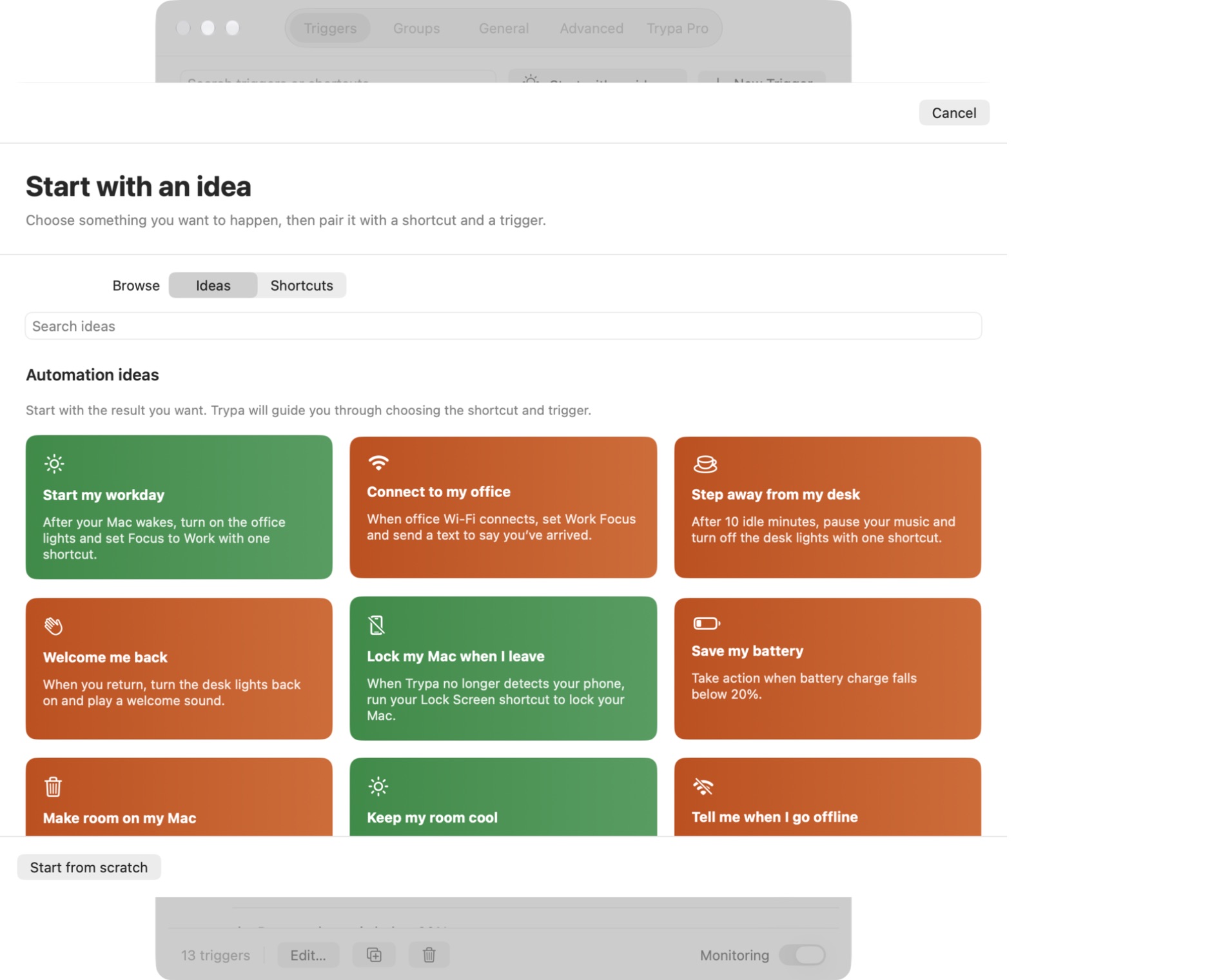
  1. Open Trypa’s ideas browser to find a useful starting point.
  2. Choose an idea and prepare its actions in Apple Shortcuts.
  3. Connect that shortcut to a trigger and adjust the condition to suit your day.

Trypa decides when to run. You configure what happens in Apple Shortcuts.

See the ideas browser ↗
02

Automation help

Start with the checklist above, then check the part that isn’t behaving as expected.

My shortcut isn’t running
  1. Run the selected shortcut directly in Apple Shortcuts. Fix any errors or permission prompts there first.
  2. Check that Trypa is running, monitoring is on, and both the trigger and its group are enabled.
  3. Open the trigger and confirm the watcher, condition and selected shortcut are correct.
  4. Check any permissions requested by that watcher in macOS System Settings.
  5. Test the actual condition—for example, disconnect and reconnect the selected network for a connection trigger.

If it still fails, email support with the trigger, the condition you tested and what happened.

My weather trigger hasn’t fired
  1. Check that location access is allowed and weather monitoring is enabled.
  2. Confirm the weather measurement and threshold in your trigger.
  3. Allow for the update interval: weather checks every 30 minutes while monitoring is on, and weather triggers share an update.

Rain and snow use reported conditions; they are not instant precipitation alerts.

See the weather trigger settings ↗
The shortcut runs, but its actions don’t work
  1. Open the shortcut in Apple Shortcuts and run it manually.
  2. Check each action’s settings and any permissions or connected services it needs.
  3. Once the shortcut works independently, select it again in Trypa and test your trigger.

Actions such as controlling lights, changing Focus or sending a message are configured in your shortcut.

03

Purchases & Pro

Trypa 2 is free with one trigger. Pro is a one-time upgrade, with no subscription.

What’s included in Pro, and how do I upgrade?
  1. Use the free version with one trigger to get started.
  2. Open Trypa’s in-app upgrade screen to see your local price.
  3. Upgrade to Pro for unlimited triggers, Groups and Weather.

The Mac App Store lists the version and features currently available in your region.

I bought Trypa before version 2

Pro is included for eligible earlier Trypa purchases.

  1. Check that you’re signed into the Mac App Store with the Apple Account used for your original purchase.
  2. If Pro hasn’t unlocked automatically, use Restore Purchases in Trypa.
  3. If it still doesn’t unlock, contact support and explain what you see.
How do I restore my purchase?
  1. Sign into the Mac App Store with the Apple Account you used to buy Trypa or Pro.
  2. Open Trypa and use Restore Purchases.
  3. If the upgrade is still unavailable, email support with your Trypa and macOS versions and any error message.

Never send your Apple Account password, verification codes or payment details.

Still stuck?

Tell us what you expected and what happened. Include your macOS version, Trypa version and trigger.

Email Trypa support ↗